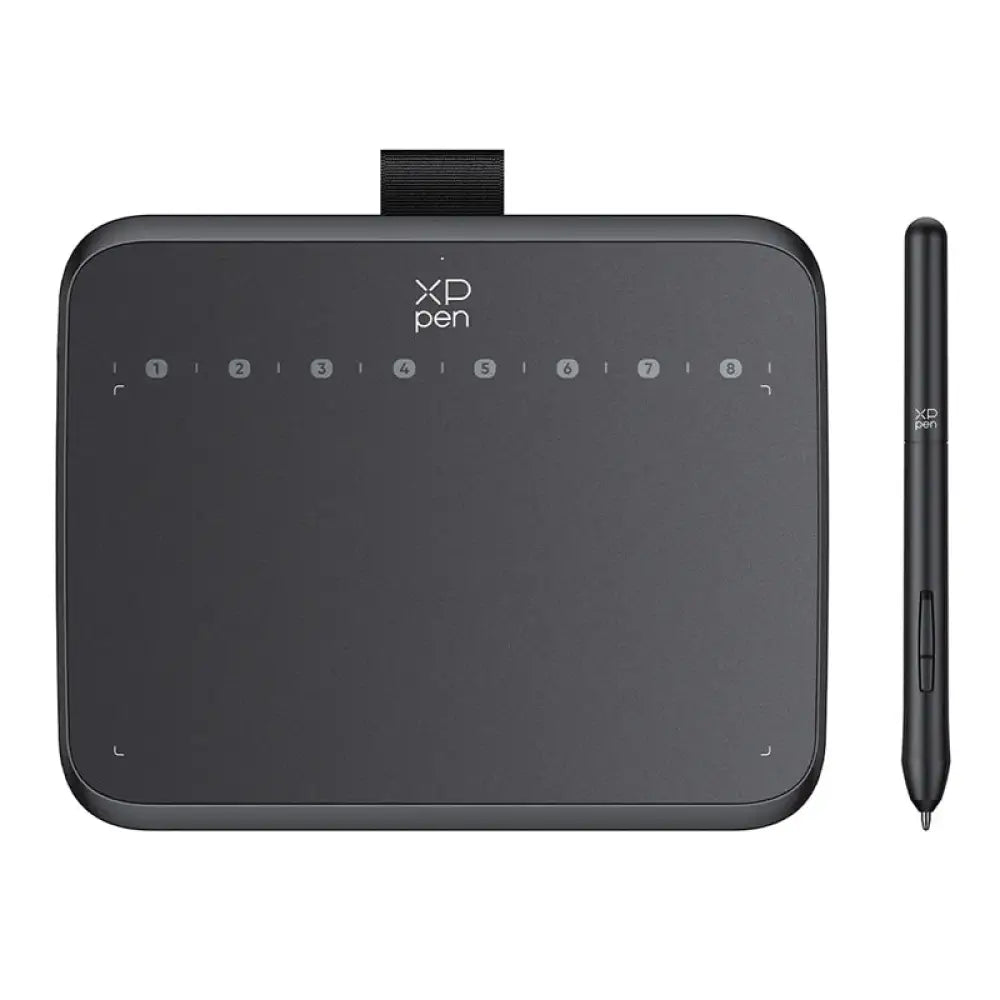
XPPen Deco 640
Draw, Write & Teach – Digital Pen Tablet
Sketch, paint and animate on the laptop or Android phone you already own. It feels like pen on paper, and you don't need an iPad.
Heritage Day sale · ends Sunday 27 September
- Pressure-sensitive pen: light strokes stay thin, firm strokes go bold
- Works with free art apps like Krita and MediBang, plus Photoshop
- Works with Windows, Mac and Android phones
- Try it for 30 days. Full refund if it isn't for you
Or spread the cost over 2 to 6 months with Pay Later

“It's my first drawing tablet and it doesn't disappoint… totally recommend for beginners that want to do digital art or just people on a tight budget.”
Teags, first-time digital artistPay the way you like. Secure checkout by Stitch.


 Pay Later · 2 to 6 months
What's in the box
Will it work with my computer?
Delivery, returns and warranty
Payment methods
Always wanted to draw digitally? This is the easy way in.
Two in three happy buyers who say how they use their tablet use it to draw: sketching, painting, anime, animation and design. About one in four of them were complete beginners.
“I love this tablet. It's easy to install and learning how to use it didn't take time, I'm already illustrating at the speed of a pro. It works well with Adobe software and it works well as a mouse too.”
Hazel, illustrator

Free apps are all you need. Krita, MediBang Paint and GIMP cost nothing and support pen pressure. Photoshop, Illustrator and Clip Studio work too, and on Android there's ibisPaint X.
What happy buyers use it for
Share of 645 four- and five-star reviews of pen tablets sold in South Africa that say how they use theirs
Reviews can mention more than one use. The other 782 happy reviews don't say. Collected September 2026.
It plugs into the setup you already have
No new computer, no studio. The tablet is 7.7 mm thin and 170 grams, so it works wherever you already sit down to draw.
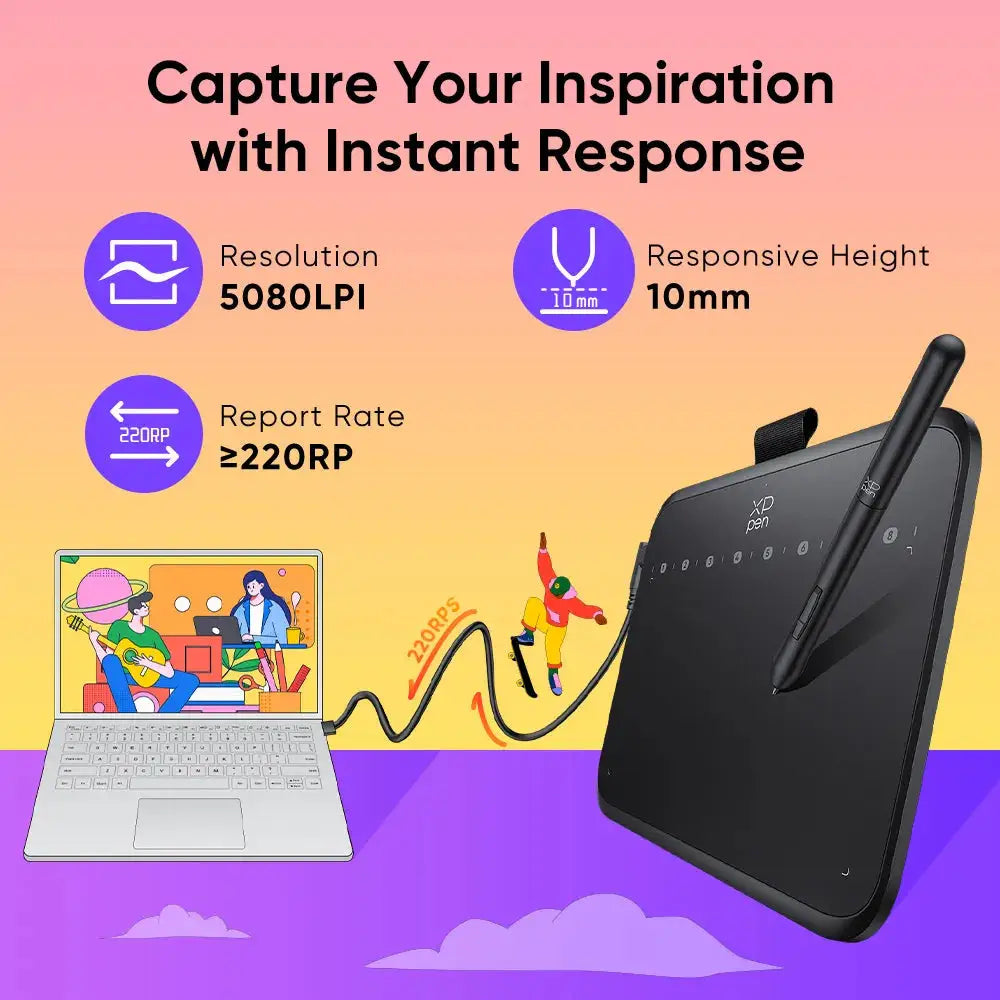
One cable, then you're drawing. Plug it into a laptop or an Android phone, open Krita, MediBang, Photoshop or ibisPaint, and the pen goes straight onto the page.

Five things that stop people drawing digitally
What buyers said held them back, and what changed, in their own words.
You've never drawn digitally and don't know where to start
No experience needed. Plug it in, open a free app like Krita, and use the pen as a mouse until drawing feels natural.
It's an amazing entry level drawing tablet. Especially for people like myself who are new to digital art or if you are on a budget it's such an amazing device to learn.
 David, new to digital art
An iPad and pencil are way out of budget
It costs a fraction of an iPad setup, and plugs into the laptop or Android phone you already have.
I should've bought this sooner, instead of buying a stylus for my older generation iPad.
 Nthabi, draws on a laptop
Drawing with a mouse or your finger never looks right
The pen moves with your wrist, so lines land where you meant them. Press lightly for fine lines, harder for bold ones.
My daughter loves it… the pen is easy to use and so much better than drawing with her mouse. She also does creative art for her YouTube channel.
 Desray, parent
Your child draws on everything and wants to go digital
A low-cost first step into digital art that plugs into the family laptop. Parents say their kids get the hang of it quickly.
I bought it for my son and his drawings had improved. I love it, I must buy another one for my other son, plus it's affordable.
 Nkhensane, parent
You love pencil and paper, but want to go digital
The pen responds to pressure and tilt like a pencil, so your sketching habits carry straight over.
Great for the price, straightforward to setup and use, minor learning curve to start drawing with it coming from paper, and feels close to drawing on paper.
 Andrew, switched from paper
Five reasons it's the one to draw with
Lines that respond like a real pencil
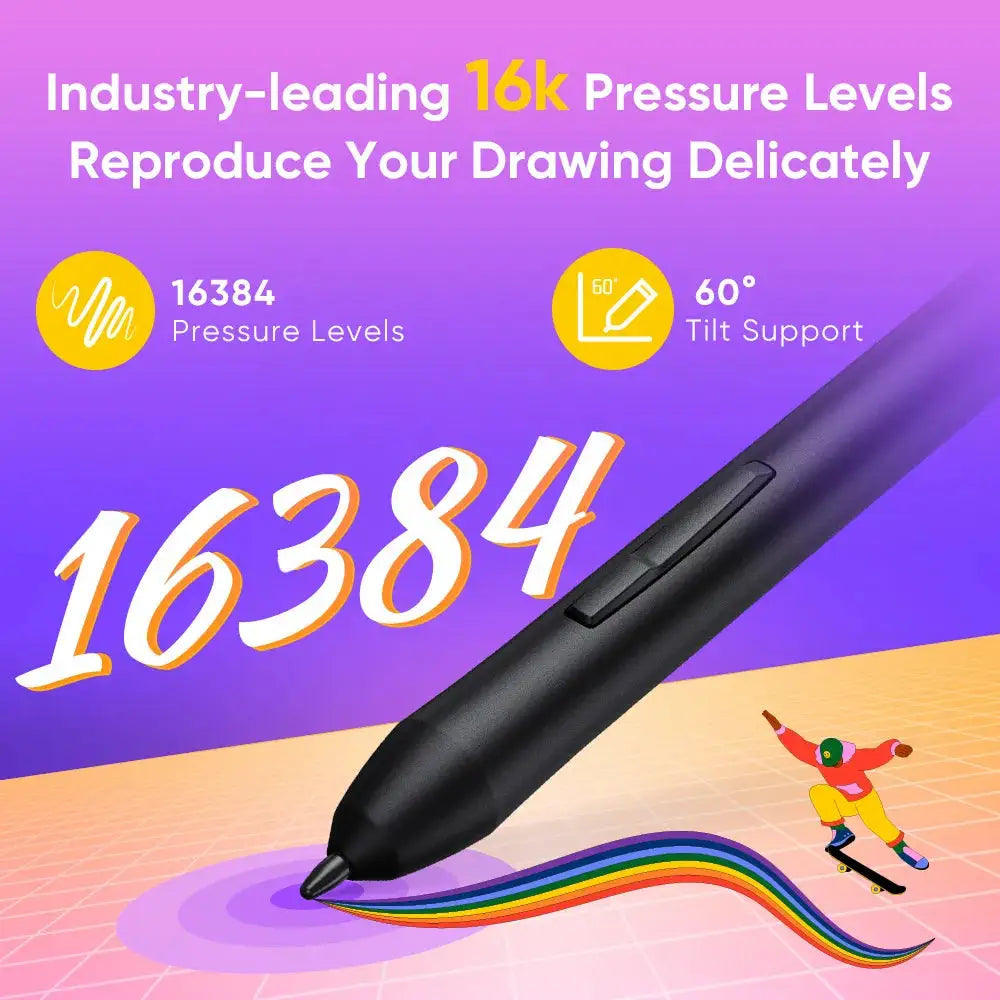
16,384 pressure levels and 60° tilt. Press lightly for a fine sketch line, harder for a bold ink stroke, and tilt the pen to shade.
Smooth writing experience and the customization of the pressure sensitivity is very intuitive. Overall great dp.
 Verified Deco 640 buyer · Uses it for writing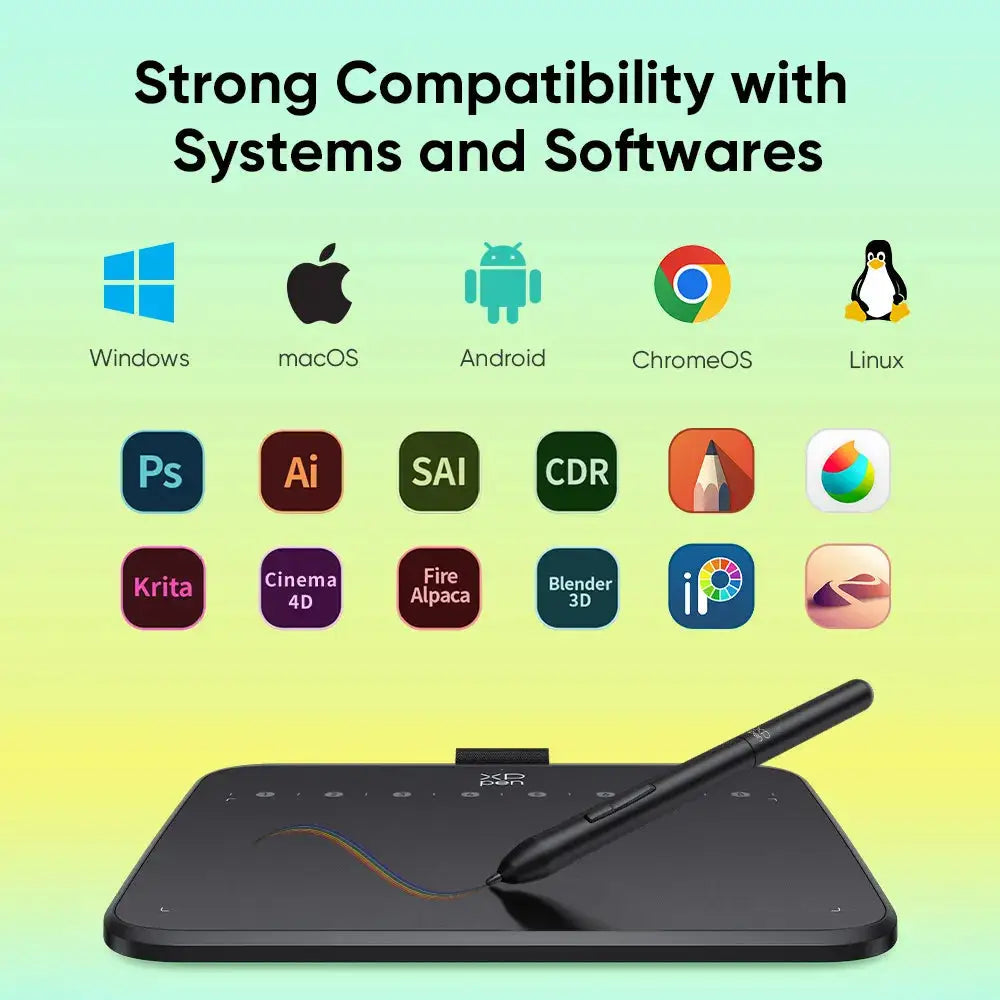
Free apps are all you need
Krita, MediBang Paint and GIMP are free and support pen pressure. Photoshop, Illustrator, Clip Studio and Blender work too, on Windows, Mac, Linux and Android.
Love this product! I enjoy working on this, and it works excellent on open source drawing programs.
 Lindi, draws in free apps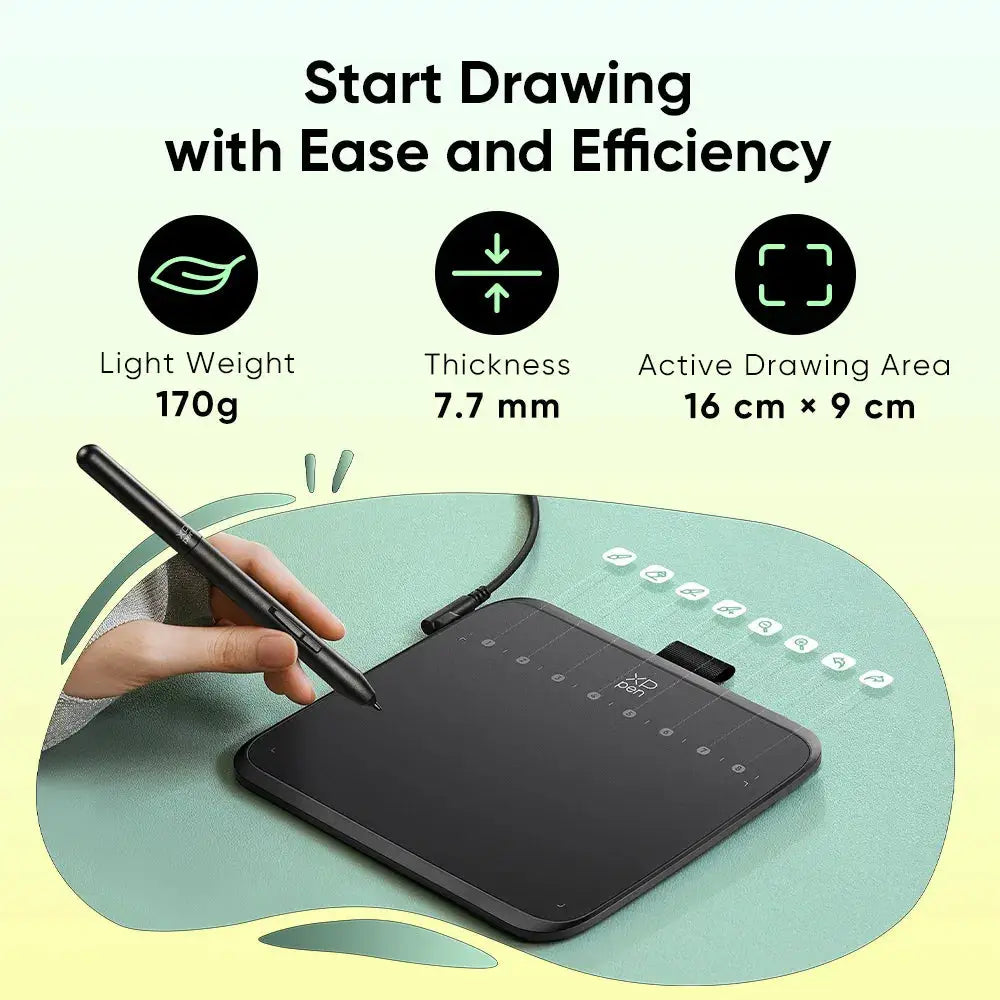
Draw anywhere, even on your phone
7.7 mm and 170 grams. Slip it into a laptop sleeve, or plug it into your Android phone and sketch in ibisPaint X or MediBang Paint.
I thought the size would be a hindrance, but it's very intuitive. I love that it's easy to carry around with me. I haven't experienced any problems with it so far.
 Verified Deco 640 buyer · Carries it everywhere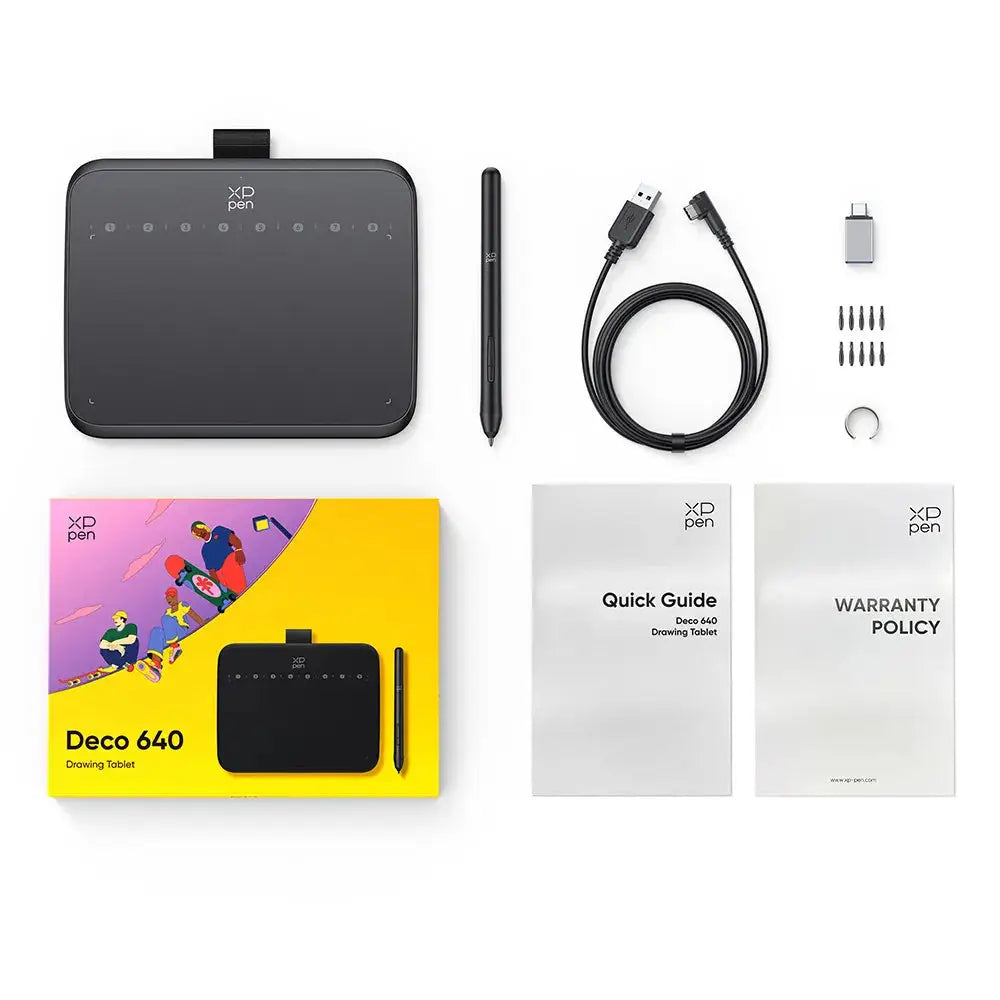
Nothing to charge, nothing to run out
The pen powers itself from the tablet. Ten spare nibs and a USB-C adapter are in the box, so you're set for years of drawing.
The pen is so comfy and there are a lot of accessories that come with this dp. For instance, there is a USB to Type-C converter! I love how well it works with my Asus laptop.
 Verified Deco 640 buyer · Laptop user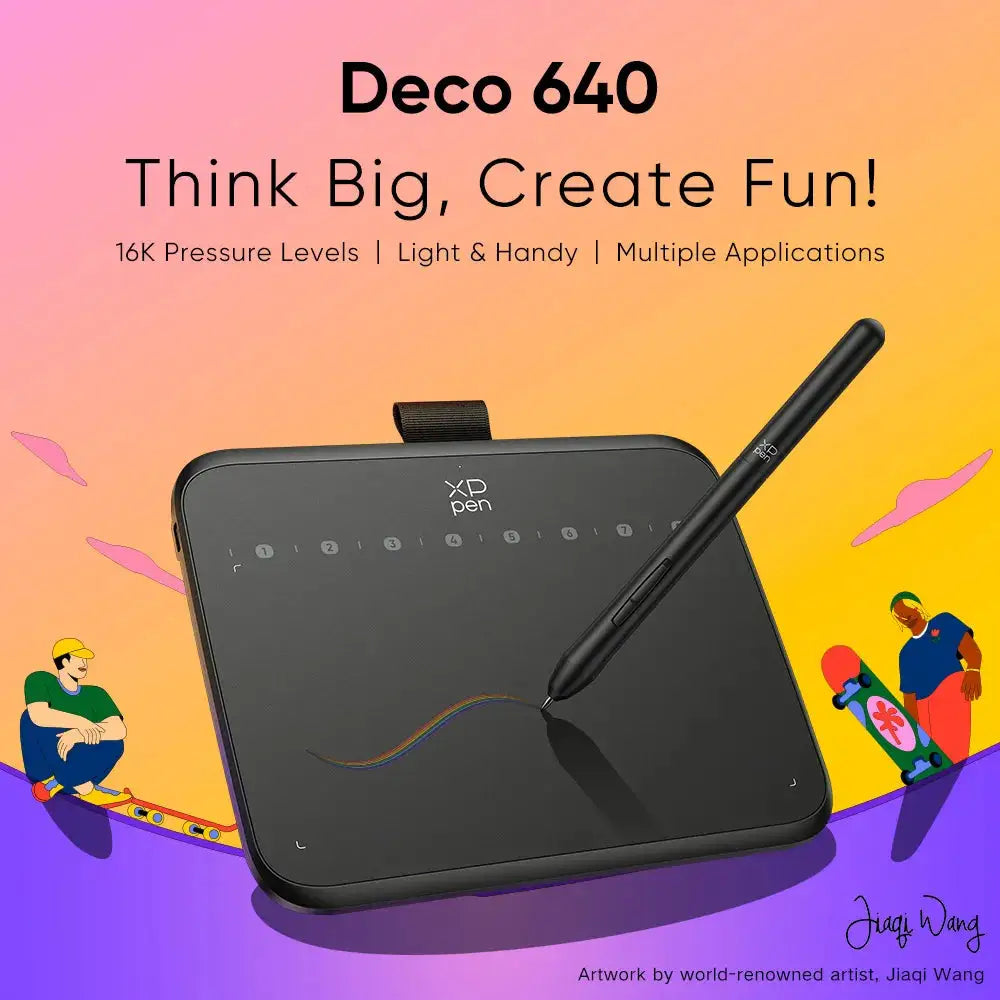
Made for first-timers
No experience needed. Reviewers say it feels natural within a few hours to about a week, and it works as a precise mouse in the meantime.
A total new experience with amazing possibilities. It is easy to understand and work with.
 Verified Deco 640 buyer · New to pen tablets
It writes and teaches too
It's in the name. The same pen makes handwriting, teaching and signing easy.
Teach and tutor online
Write equations and mark work live on Zoom, Teams or OneNote while you share your screen.
Teaching online, this product made my life 100% easier… I cannot teach without it anymore.
 Mia, teacher
Take notes without paper
Handwrite lecture notes straight into OneNote, where they're searchable and backed up.
I use it to take notes for varsity and it's made my life easier; saves using paper.
 Mel, university student
Sign without printing
Sign, highlight and mark up PDFs on screen, then send them straight back.
Such an amazing investment; from signing documents without printing them out…
 Kristen, teacher
The numbers that matter
It beats other drawing pads under R2,000 on pressure, tilt and thickness.
At least twice other pads under R2,000.
Shade with the side of the pen.
Thinner than most phones.
Lighter than a phone.
Undo, brush size, zoom.
The same shape as a laptop screen.
The pen never needs charging.
Years before you buy anything.

Three steps, no tech skills
Plug in, install one driver, draw. Here is the whole process.
Plug it in
Plug the cable into your laptop or PC. For a USB-C laptop or an Android phone, add the adapter from the box.
Install the driver
One free download from xp-pen.com, about two minutes.
Open your art app and draw
Krita, MediBang Paint, Photoshop or Clip Studio, or ibisPaint X on Android. If it takes a mouse, it takes the pen.
Your first week
Drawing while you look at the screen takes a little practice. Here's a simple way in.
Use the pen as your mouse. Click, scroll and browse to get the feel.
Doodle, and trace over photos on a separate layer. Your hand learns where the screen is.
By now it usually feels like second nature. Now it's just drawing.
How it stacks up
We compared the most popular drawing pads under R2,000 in South Africa before choosing this one.
| Drawly · Deco 640 | Other drawing pads | |
|---|---|---|
| Price | R980 | R570 to R1,850 |
| Pressure levels | 16,384 | 4,096 to 8,192 |
| Tilt for shading | 60° | None |
| Thickness | 7.7 mm | 8 to 10 mm |
| Works with Android phones | Yes | Sometimes |
| Pen needs charging | Never | Some do |
What buyers say
“It takes a day or 2 to get used to but once you get your hand eye coordination down it's basically second nature. No issues, the drivers are easy to install and works well with just about any drawing or editing app. Recommended for any beginner digital artist.”
 Keanan · Digital artist
“This is my first drawing tablet and I'm glad I got it.”
 Verified Deco 640 buyer · First-time user
“I'm a digital artist, and I have been using this graphic tablet for my illustrations, and I have improved on my projects… I would recommend any digital artist to own one whether you are professional or a beginner!”
 Kgothatso · Digital artist
“Bought this with my last money and I have no regrets. It's got enough space to work on if you're on a budget and a beginner at digital. Been using it with MediBang Paint for digital art.”
 Thandeka · Beginner digital artist
“Absolutely incredible! It didn't take that long to get used to which is great! The pen is super comfortable to hold, more than a normal gel pen!”
 Bianca
“It's an amazing product with pressure sensitivity when drawing your favorite anime or just navigating through your computer. Very easy to use; plug and play from the box.”
 Mongezi · Anime fan
“My son needed this drawing pad for university as he is doing 3D animation as a subject for his degree. He is very impressed and his drawing has improved immensely.”
 Karen · Parent of an animation student
“I've used a few tablets before for graphic design and this one is a 10/10. It is easy to use and the pen glides like butter.”
 Jade · Graphic designer
“Honestly, for the price you pay it's so worth it. I bought it solely for adding lighting and shading on Photoshop designs/manipulations and the instant improvement in my work is notable.”
 Monica · Photoshop artist
“I love it, it's exactly what I thought it would be.”
 Verified Deco 640 buyer
“Honestly, this tablet is a delight. It responds quickly, connected to a MacBook Pro with no issues and has just been a dream to teach on. I cannot recommend it highly enough.”
 Jennifer · Teacher, Mac user
“Does the job every single use. Hasn't failed me once. The response from the pen has no lag and the buttons on the graphics tablet are still responsive even after 4 months.”
 Yusuf · Daily user
Before you ask
I've never drawn digitally. Is this a good first tablet?
Does it have a screen? Can I use it on its own?
How long until drawing while looking at the screen feels natural?
Which drawing apps can I use? Do I need to buy software?
Is it big enough to draw on?
Is it good for anime, manga and animation?
Will pen pressure work in my app?
Does it really work on a Mac?
Can I use it with my Android phone?
Can I use it for teaching or notes too?
Is this a genuine XPPen product?
Do I need to buy anything else?
I'm left-handed. Does that matter?
How can I pay?
What if it stops working?
How fast is delivery?
We're not perfect. 29 of 30 buyers gave it four or five stars.
If you're the one who doesn't, send it back within 30 days for a full refund. Sketch a portrait, fill a page with doodles, try your first animation. If it hasn't earned its place on your desk, it goes back.
Get yours for R9802–4 day delivery · 30-day returns · 6-month warranty · Card, Apple Pay, Google Pay, Capitec Pay, Pay Later
